Watch the two-minute walkthrough, or follow the written steps below. Either way you will be done in about ten minutes.
Go to my galleryTwo minutes, start to finish. Prefer to read? The same steps are written out below.

Your gallery code arrives on a flyer from your centre or school, or by email. Click the link in the email, or type the code into the box on our ordering site. Create your account and your photos are there waiting.
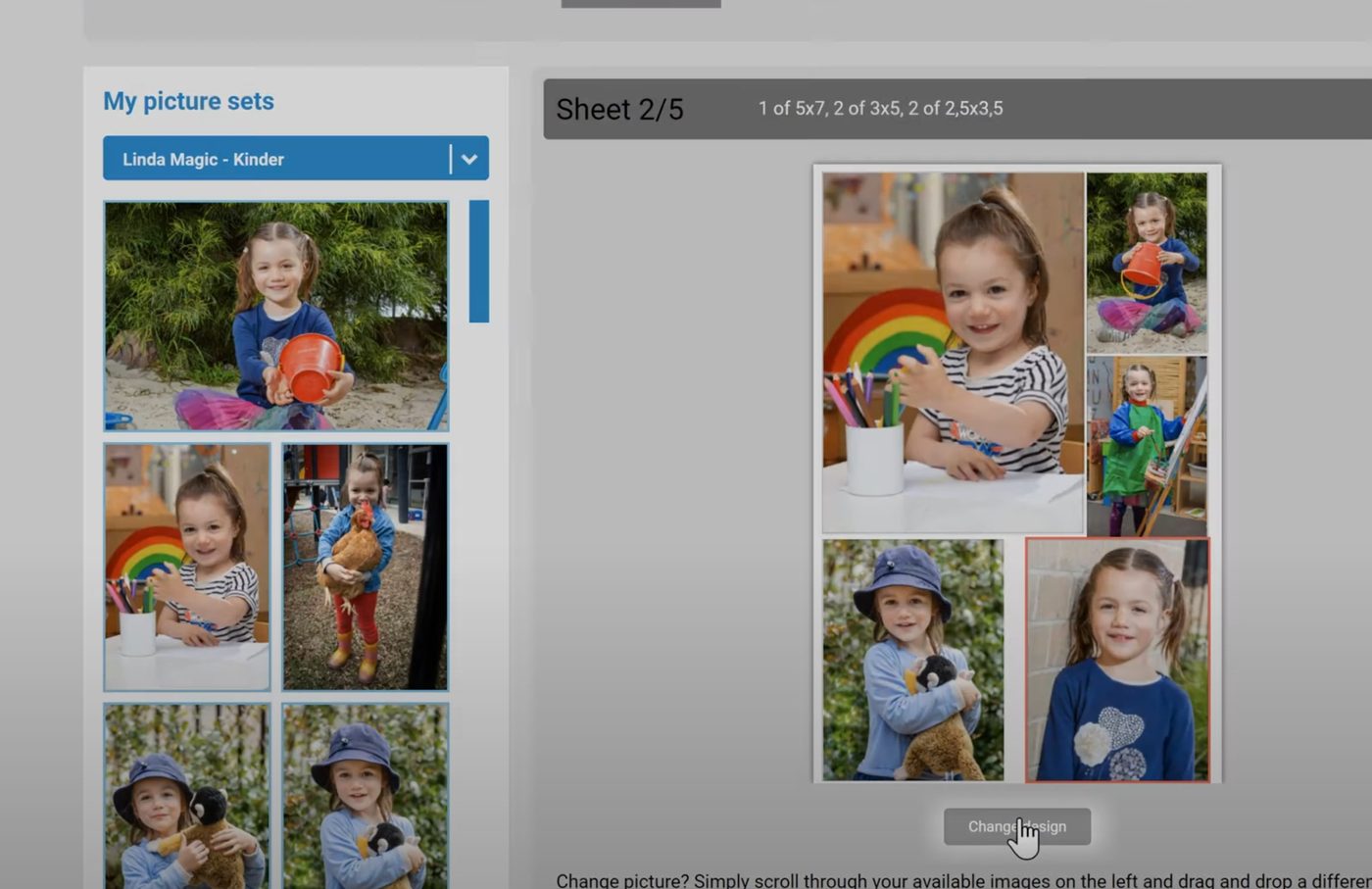
Your images sit on the left, the available packages on the right. Pick the package you want and the sheets become editable. A multi-photo sheet comes in lots of layouts — the different ways your photos are arranged on the page. Keep the sample layout, or press Change design to see the others.
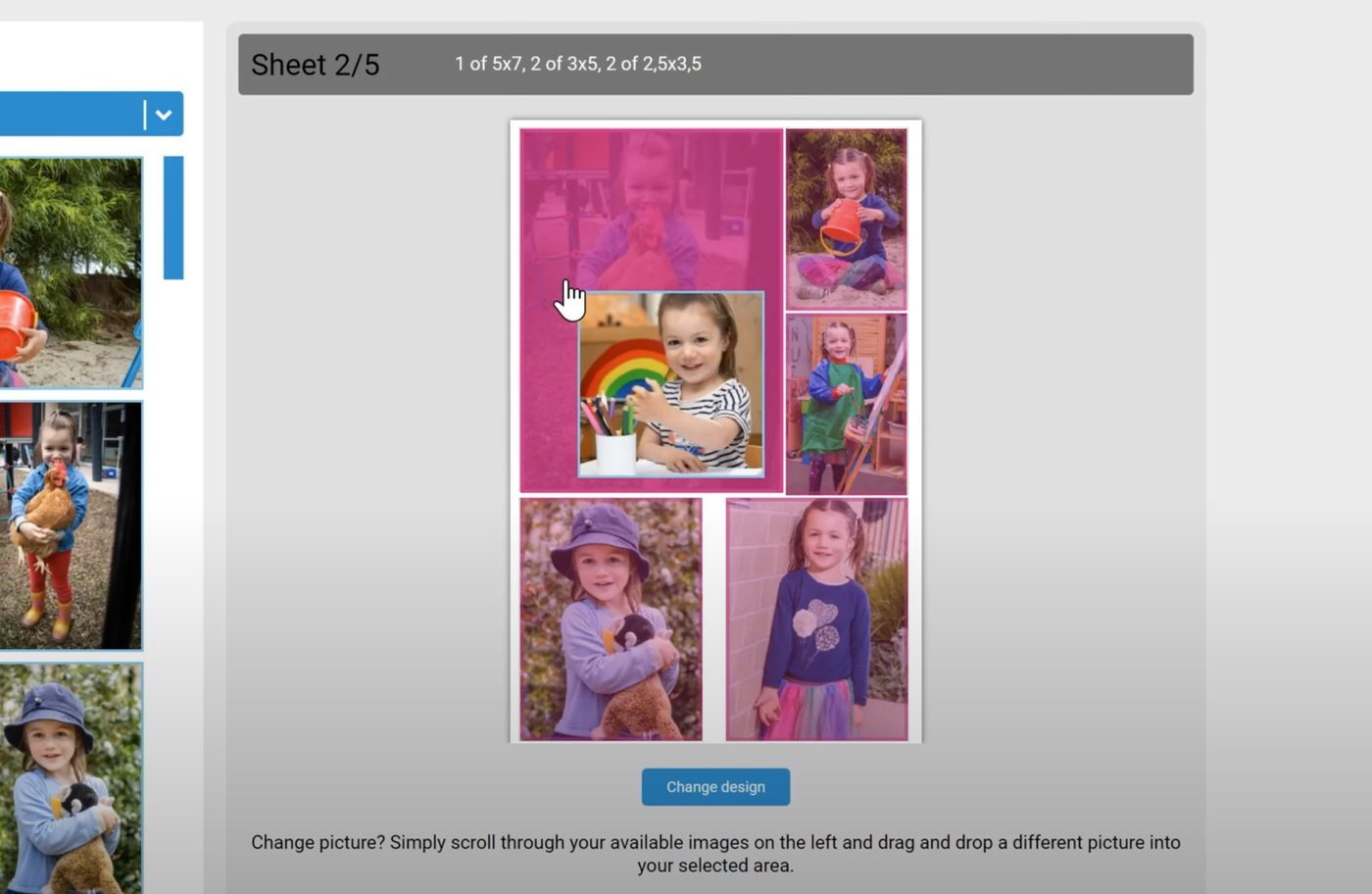
You choose which of your photos goes in each space, and you can change one of them or all of them. On a computer, drag a photo from your gallery onto the space, or hover the photo and press Insert image. On a phone, tap the space on the sheet first, then tap the photo you want in it. On a computer you can also zoom, move and re-crop the photo inside its frame. On a phone the editor is simpler: Rotate, black and white, sepia, and Original to undo. If you rotate a photo, give it a moment to save before you press Done. Take your time here: this is exactly how they’ll print.
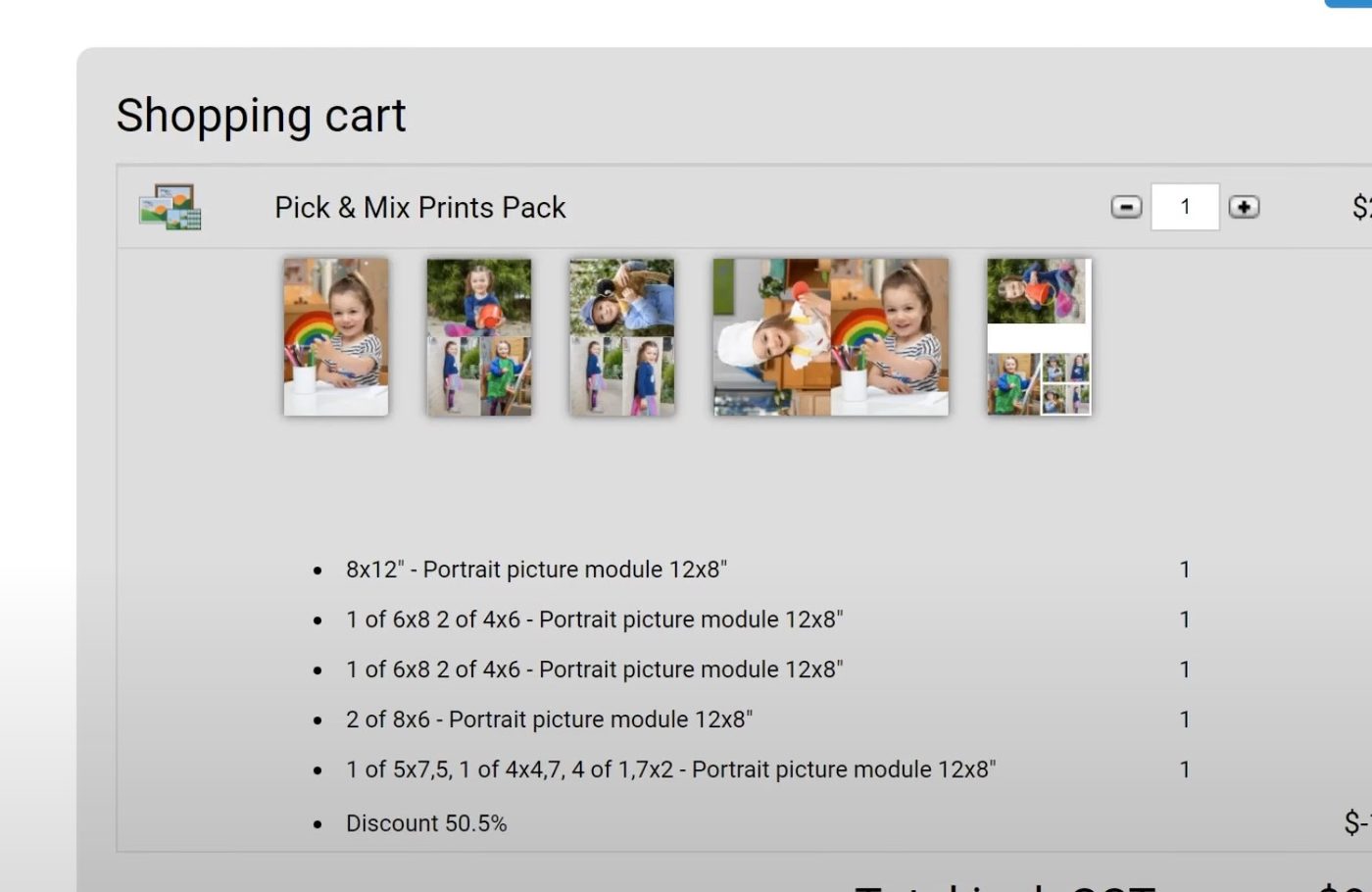
Happy with it? Add the package to your cart. You’ll get one last look at the order before it goes in. Once it’s added, you can add any of our most popular products at a discounted price.
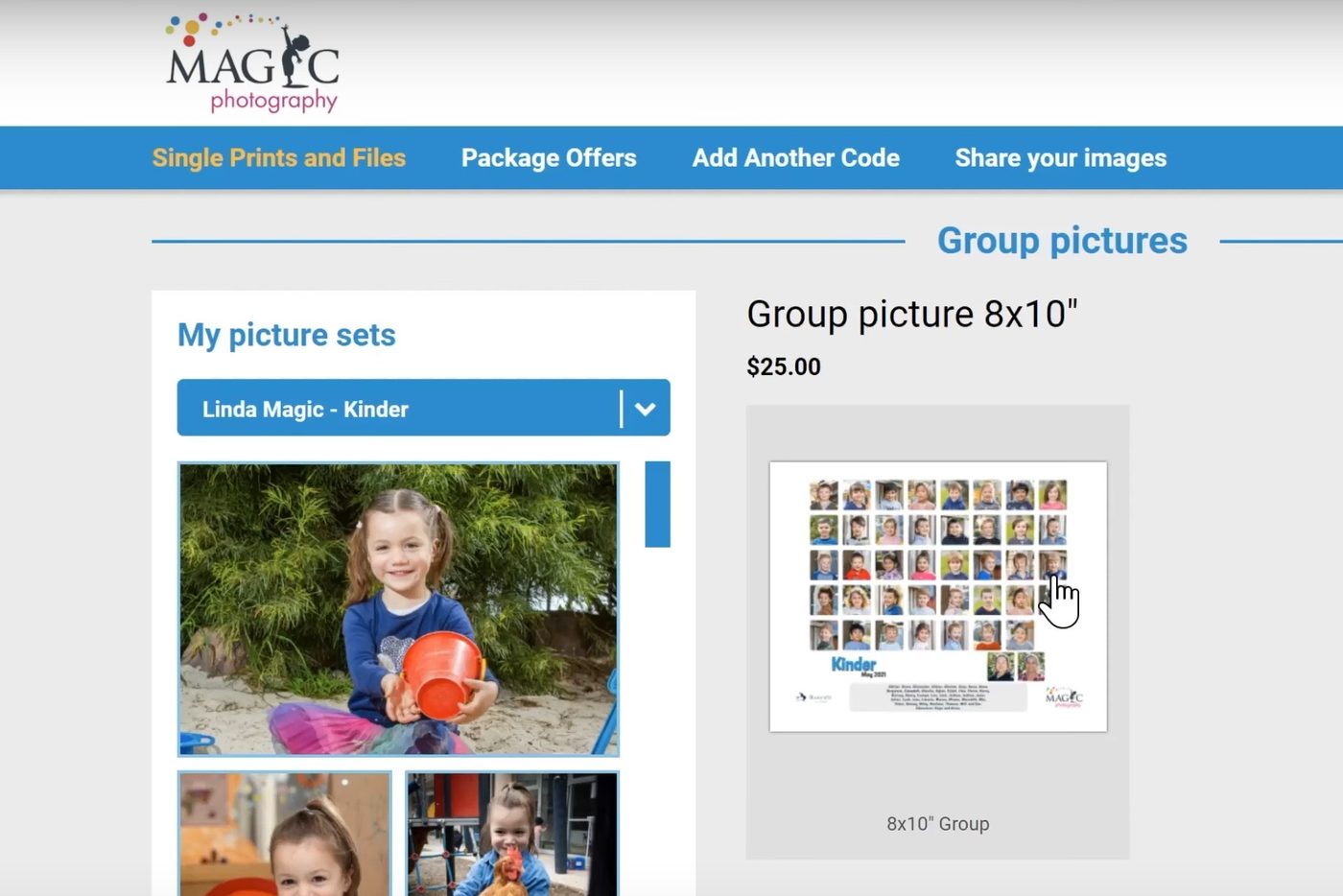
For individual items choose Single items in the menu — on a phone the menu is behind the ☰ button at the top left — and the page opens headed All products, listing every category. For a class or group photo pick Group photos from that list and choose your print size; on the next screen you can swap the collage style for the classic style, where it’s available, by inserting it over the other photo. Then check out, choose your delivery, fill in your details, accept the terms and pay. Delivery choices and any offer on at the time are shown at checkout, and your gallery counts down how long the discounted prices last.
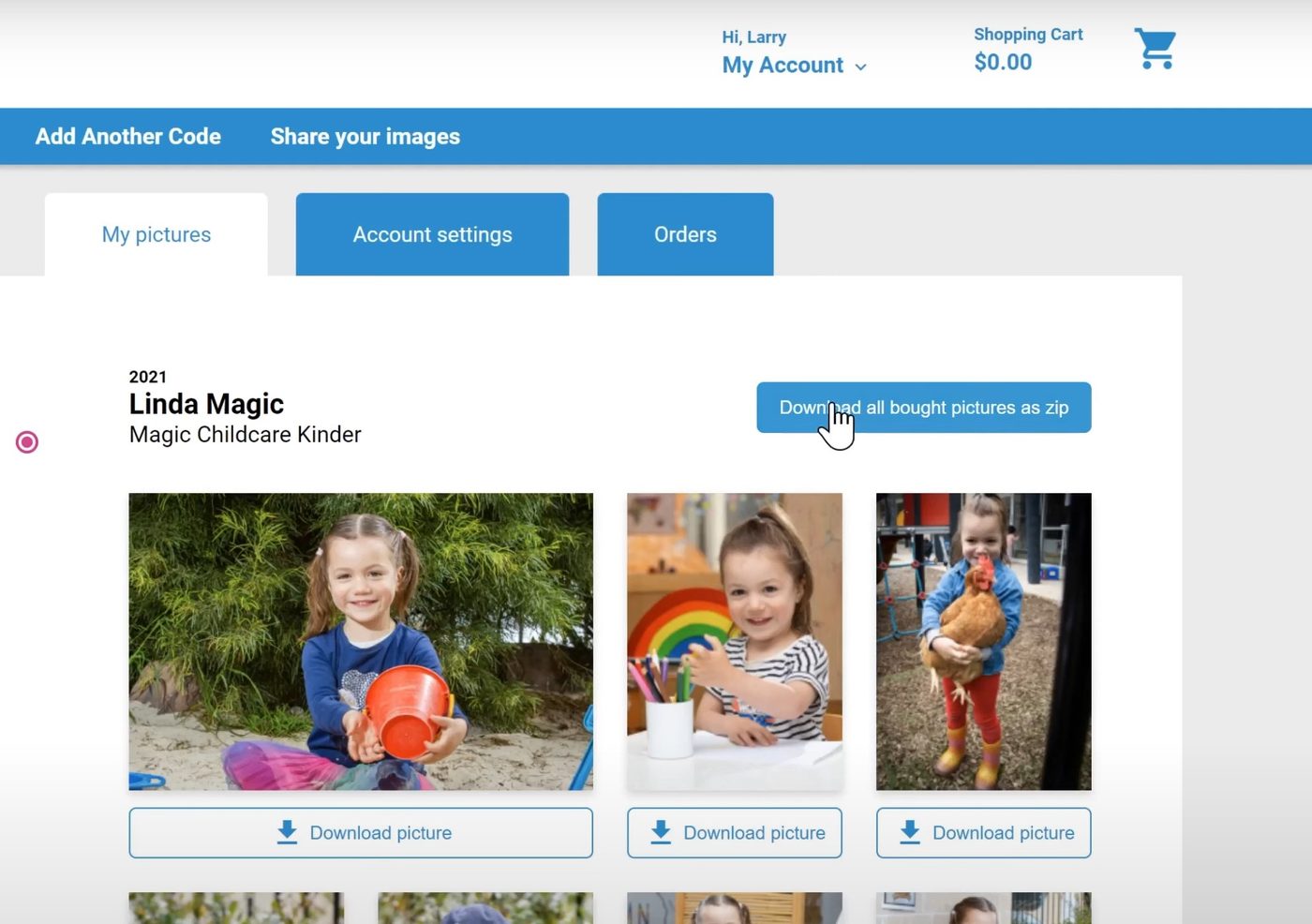
Bought digital images? They’re yours immediately. Choose Download photos in the menu (it opens My account › My pictures) and download them one at a time, or grab the lot in a single zip file.
Have your gallery code handy — it is on the flyer from your centre or school, or in your email.
Go to my galleryLost your code? Email [email protected] with your child's name and their centre or school.
Your code comes home on a flyer from your centre or school, or arrives by email. If you cannot find either, email [email protected] with your child's name and their centre or school and we will resend it.
Galleries stay open for a set period after your photo day. The closing date is shown in your gallery and in the email. If yours has closed, get in touch and we will do what we can.
Contact us as soon as you can. If the order has not gone to print we can usually still change it.
Straight away. Choose Download photos in the menu (My account › My pictures) the moment payment goes through.
Yes. Share the gallery code and they can create their own account and order their own prints.
You’re in the right place. Here’s where to head next: